Saturday, 27 July 2013

What's that song?

Ever have those times when you're listening to the radio, at a social event or at the movies and you hear a song but don't know or can't remember the title? Well, if you have a smartphone handy, there's a solution for that. Whilst there's a few apps and services to choose from, I use SoundHound.

SoundHound Inc.
SoundHound is now available for iOS, Android, Windows 8 and Blackberry. I use it on the iPhone and it's free to download. An upgrade of $9.99 USD will get a banner-ad free version and extra features. For my occasional use, the free edition works just fine and I can even review the history of songs I've had the hound sniff out.

What's even cooler? If you have a song stuck in your head, humming or singing it will work too. Those who know me, know that I can't keep a tune to save my life but it still found Blister in the Sun with me humming or singing.

You'll need to be connected to the internet and SoundHound works best with a good bandwidth.

Labels: , ,

Thursday, 25 July 2013

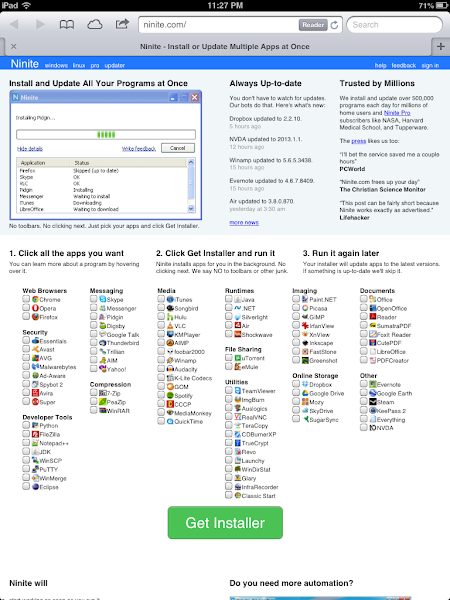
Say Ninite!

If like me you install or reinstall a number of Windows devices several times in any given year, you'll know what a pain it is to hunt down all the latest installers for the usual suspects. That's all the freely available software such as browsers, messaging apps, cloud storage clients and readers. And even if you don't do this regularly, it's often hard to figure out what's available and where to find it when you buy yourself some new hardware or carry out an upgrade.

Never fear, simply go to ninite.com, select the software you want to install and get a custom installer package that will complete the installation process for you. It's useful for checking and installing software updates too.

There's really not much to say, except that it has saved me many hours of effort in recent years and is highly recommended no matter your level of technical expertise.

If you run Ubuntu Linux, they can help out too, albeit the software options are fewer in number.

Ninite - Install or Update Multiple Apps at Once

Labels: , ,

Wednesday, 24 July 2013

Get your social media on... Google+ badge

The next in our social media series is on how to add a Google+ badge as featured on this blog. Similar to the Facebook like box, the work is essentially done for you.

What you need

  • Access to edit the layout components or templates of your website
  • A Google+ Page

Instructions

Go to https://developers.google.com/+/web/badge/. Either enter the Google+ URL you want to create the badge for or log in to access all the profiles, pages and communities associated with your Google account. Configure the settings until you get the result you want. Simply follow the instructions to insert the generated code into your website template or content.


Google+ Platform

Labels: , , , , , ,

Tuesday, 23 July 2013

Get your social media on... Facebook like box

For a couple of my blogs, I use social media to promote content and engage with readers. You'll notice that there are links on the header navigation to the Gadget Girl Google+ and Facebook pages, as well as a link to the Twitter account.

The merits of engaging through social media channels isn't the topic today. Instead I wanted to share how simple it can be, using the readily available online tools, to provide links to social media assets from your own website or blog.

Today's how-to is to add a Facebook like box, as featured on this blog.

What you need

  • Access to edit the layout components or templates of your website
  • A Facebook page

Instructions

Go to https://developers.facebook.com/docs/reference/plugins/like-box/ and change the default URL to your Facebook page URL. Configure the settings until you get the result you want and click "Get Code". From there, simply follow the instructions to insert the plug in code into your website template or content. There are a variety of options, from a simple URL call to iframe and HTML5.


Facebook Like Box

Labels: , , , , , ,

Monday, 22 July 2013

iPad + AirPlay + QuickOffice = wireless presentations

Last week I wrote a how-to on connecting iOS devices to a television wirelessly using an AppleTV. This can be great fun if you want to watch a movie, share photos or game on something bigger the 9.7". But what about delivering a simple PowerPoint presentation? Easy!

Although there are a number of options for Microsoft Office compatible apps, the one I use is QuickOffice. Not only does it allow me to play my presentations back, it enables simple edits for those last minute touch ups and typo fixes. Even better, when it detects that it's connected to an 'external monitor' it enables additional presentation controls on the iPad such a red 'laser pointer'.

What you need

  • All the components from the how-to on iOS and AirPlay
  • A compatible iOS device (iPad recommended) running QuickOffice - this is a paid app
Replacing a meeting or class room projector? Don't! | Gadget Girl Files

Steps

  • Prepare your AirPlay connection per the how-to
  • Open your presentation on QuickOffice (step 1)
  • Enable AirPlay to your AppleTV and enable mirroring (step 2)
  • Within your presentation tap the play icon and select 'External Monitor' (step 3)
  • Your presentation should now display in play mode on the TV with additional controls on the iPad
Technically, you shouldn't need to enable mirroring, however my personal experience is that mirroring is the sure-fire way for QuickOffice to detect the external monitor.

Labels: , , , , ,

Saturday, 20 July 2013

Use your AppleTV with your Android

If you happen to have an AppleTV and want to use your Android device to stream media using AirPlay, it is possible. The option I've tried is ZappoTV's AppleTV AirPlay Media Player.

This app is available free from Google Play. You have to setup an account use it, but it's pretty painless. Unfortunately, you won't be able leverage the same level of functionality as you can with iOS devices but it does enable you to play YouTube videos, share photos and stream media using it's in-built player capability.

AppleTV AirPlay Media Player - Android Apps on Google Play

What you need

  • A television with HDMI input
  • An Android device running at least 2.1 with ZappoTV's AppleTV AirPlay Media Player installed
  • A ZappoTV account
  • Apple TV generation 2 or 3 running the latest software
  • Wi-Fi 802.11a/g/n network (you can use a MiFi if you're needing to be mobile)

Steps

  1. Hook up the AppleTV to the television
  2. Connect your 'droid device and the AppleTV to the same network (so they can 'see' each other)
  3. Open AppleTV AirPlay Media Player app
  4. Select the Devices tab and select the AppleTV you wish to use -  wait until the device is connected
  5. From the Browser tab decide what type of media you want to beam 
The image below shows streaming a YouTube video from my Nexus 7. (And by the way, that's me stroking the swarm of bees with my bare hand.) 


Gadget Girl says

I like that this app allows me to extend the use of an existing accessory to other devices and for that factor alone, it's worth a try.

The requirement that I register a ZappoTV account and log in each time is a bit annoying and seems entirely unnecessary. And it doesn't seem intuitive to have to remember to click into devices as a separate step: it would have been better to have it prompted as you open the app.

On the positive side, it works well and seems stable. Despite having limited range of functionality, it does target the ones you're most likely to use. And it's FREE.

Labels: , , , ,

Friday, 19 July 2013

Lifehacker's best of Android 2013

Lifehacker have released their list of the best Android apps for 2013. Scrolling through what's there, I'm pleased to see quite a number are actually multiplatform, such as Any.Do, Instagram and Snapseed.

If you run a 'droid smartphone or tablet, be sure to check out this year's list. Lifehacker Pack for Android: Our List of the Essential Android Apps

Labels: , ,

Thursday, 18 July 2013

Falling from the cloud

A much-respected colleague and fellow gadget-lover has written a great article with a pragmatic alternative solution to cloud storage. Check it out: No more clouds


Labels: ,

Wednesday, 17 July 2013

Heading overseas? Get local mobile data

If you've enabled data roaming on your phone or tablet and gone overseas you've probably encountered that awful feeling of looking at the bill on your return and regretting every photo you've uploaded to Facebook and all the restaurant reviews you read online. Some countries don't have cheap options for wifi at hotels and short of hanging out at Starbucks and McDonalds, staying in touch can turn into a frustrating exercise.

Whenever I head overseas these days, I take my pocket wifi with me. And some of our family have gotten in on the game as well and borrow one when heading to Oz on holiday.


Because New Zealand mifi aren't locked, I buy a local SIM on prepay and just swap out. I've successfully done this in Australia with both Amaysim and Vodafone. For between $10 and $20 dollars I can hook myself up with a prepay plan with a couple of gig broadband. The Amaysim pack I have includes free social media sites, so actually, Facebook uploads don't deduct from my available data.

Even better on these jaunts, with full charge, I can throw the device in my pack and connect myself and fellow travellers for real-time instagram updates of our sightseeing experience for about 6 to 8 hours. It's great when you want to pull up local information or book tickets online whilst out and about. And the benefit of not changing out the SIM in my phone is that I can still send and receive txts on my usual number.

A few tips, particularly if you're not technically confident:
  • Unless you're comfortable with configuring router settings, stick to Vodafone devices and Vodafone SIMs - the devices come configured with international settings so it's easy enough to plug and play if you stay 'in-house'.
  • When you purchase your SIM, the saleperson may try to persuade you to purchase a full device on the premise that "your one won't work here". As long as your mifi is unlocked you won't have that problem. 
  • If you are technically inclined, most telcos provide support information online to assist with configuration, or their call centre can talk you through the setup.


Labels: , , , ,

Lifehacker's best of iPhone 2013

This year's Lifehacker pack for iPhone includes applications for productivity, entertainment, location-services, media and utilities.

Check it out: Lifehacker Pack for iPhone: Our List of the Essential iPhone Apps

Labels: , ,

Tuesday, 16 July 2013

Signing out of Google+ Hangouts

I rarely take a negative view on change: I view that improvement is a type of change and sometimes on the way to better we have to give something up; a trade-off if you will. Occasionally, I find myself having to have a wee rant.

Google messing about with both Talk and Hangouts, two wonderful functions of which I have long been a loyal user, has gotten me very annoyed. Not only has the replacement of Talk on Android with the unified version of Hangouts produced a messy, lesser functioned product which is as unusable on iOS and almost as unusable on the GMail client, the browser version now inserts itself persistently anytime you are logged into Google+. And this applies when you simply want to go in and play around with photos on what used to be Picasa Web!

I consider myself pretty adept at things technical, particularly in the application and web space but for the life of me I can't figure out how to better control this widget. This loss of control of when I'm logged in, what my status is and the inability to actually see who's online and seeing me is a significant reduction on privacy control and I really, really don't like it.

So, Google, you're losing some kudos here. To think we pile vitriol onto Facebook for their loose and ready application of privacy and security but at least I can specify who sees me online for chat and I can log it out whilst I play with my photos. And for all open hostility for Apple's lack of customisability and configuration without jailbreak I can figure out most applications without being reduced to googling "how to log out hangouts without logging out google+".

If you check out the forums, I am obviously not unique in my frustrations: http://productforums.google.com/forum/#!topic/chat/0edQ0n1aGD8.

Sign out of Hangouts on Google+

Because I had quite a difficult time figuring it out, here's the Gadget Girl guide to logging out of Hangouts on the browser. Remember, if you've been upgraded to Google+ Photos from Picasa, you'll want to check this out.
  1. Click the little green and white hangouts quote mark button on the right of the header
  2. Click the arrow at the top of the hangouts bar, next to the 'New Hangout' field
  3. Sign out is at the bottom of the list 


Labels: , , ,

Monday, 15 July 2013

Replacing a meeting or class room projector? Don't!

Now that I've got your attention, you should know I'm not quite as black and white on the matter as the title suggests. What this how-to is really about is using some other technologies you have available to deliver presentations and media using a television.

In recent years many of the meeting rooms I've been in have had a modern television installed with HDMI input allowing transmission of both video and audio. Increasingly they're network capable. Technologies such as Miracast are advancing and becoming more prolific.

That said, we're not quite ready with all platforms to deliver wireless screen mirroring for the average user. Jailbreaking or rooting expensive equipment isn't a comfortable experience for everyone.

Apple's AirPlay, however, has enabled that level of functionality for more than a year and I've been happily using it for some 'magic' in meetings by hooking up my AppleTV to the in-room television and using AirPlay and an iPad to output.

Fear not, non-Apple fanboys and fangirls, we'll look at other options in the coming months.

What you need

  • A television with HDMI input
  • iPhone 4S or later, iPad 2 or later, iPad mini, or iPod touch (5th generation) running at least iOS 5
  • Apple TV generation 2 or 3 running at least version 5 software - these cost NZ$159  
  • Wi-Fi 802.11a/g/n network (you can use a MiFi if you're needing to be mobile)

Steps

  1. Hook up the AppleTV to the television
  2. Connect your iOS device and the AppleTV to the same network (so they can 'see' each other)
  3. Double-click the home button on your iOS device to display the footer with your recent apps
  4. Swipe to the right once for iPad and twice for iPhone and iPod to display the output button (rectangle with an upward arrow/triangle per the pictorial instructions below)
  5. Select the AppleTV and enable mirroring if required

Once this is all set up you can happily share your screen with your colleagues or class, stream media or use an Office compatible app to display your PowerPoint presentations. All this whilst moving freely around the room (without having to be in line of sight with a slide clicker) and easily handing controls over to other presenters.

Check back later this week for using QuickOffice for PowerPoint presentations on iOS; and using ZappoTV's 'AppleTV AirPlay Media Player' to stream media from an Android device to your AppleTV.

Labels: , , , , ,